
AI Story Illustration Generator: Turn Your Story into Illustrations
Start with your story, review its characters and scenes, and create a sequence of illustrations.
Eight scenes
Explore eight ordered scene illustrations from a single Genify Story project.
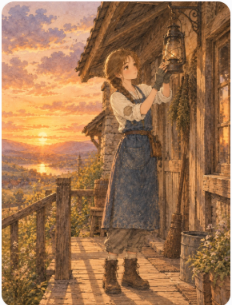
Scene 01 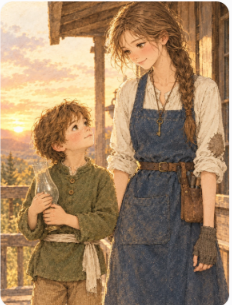
Scene 02 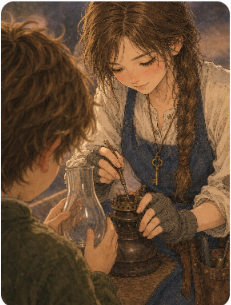
Scene 03 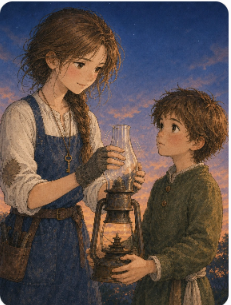
Scene 04 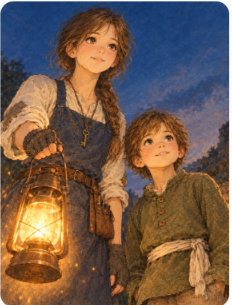
Scene 05 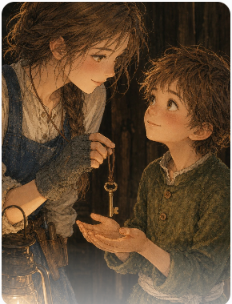
Scene 06 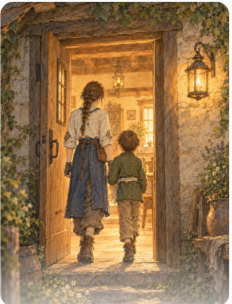
Scene 07 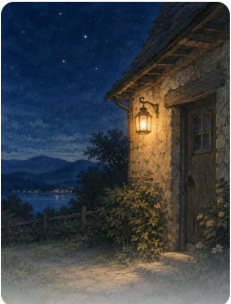
Scene 08
Story → Characters → Storyboard → Illustrations
- 01
Bring a story
Enter story text or a plot summary.
- 02
Confirm the cast
Review extracted characters and confirm them before continuing.
- 03
Review the storyboard
Check ordered scenes and prepared prompts before requesting images.
- 04
Request illustrations
Check the current estimate, choose scope, then inspect results.
Check each image against the scene you intended.
Compare the features and clothing that should persist across the sequence.
Check action and character placement against your scene plan.
Review image order and the current estimate before requesting a batch.
From story text to still images.
What does an AI story illustration generator produce?
Genify can help prepare characters and a storyboard from a story, then request still illustrations for reviewed scenes. You can review the resulting images and text in Storybook.
Does the Illustration workflow generate everything automatically?
No. Character extraction, storyboard generation, prompt preparation, and image generation are separate actions, with review and confirmation points before a user requests images.
Will every story produce eight illustrations?
No. These eight images are one project; results depend on the story and the choices made in the workspace.
Can I preview or export the illustrated story?
Review your images and text in Storybook. Use the PDF option to open a print view, then review the output before sharing or printing. For publication, check page size, image cropping, text placement, and your destination’s requirements.
How many scenes can I create?
The example does not establish a fixed scene limit. Check the current options and estimate displayed in the workspace.
Start with the story you already have.
Open the existing Story composer; review its steps before choosing to generate.