

01. “Illustrate a book” can mean a few different jobs.
An AI children’s book illustrator can help produce artwork, but a readable book also needs editing, page layout, proofing, and rights checks.
| What you have | A useful starting path | What to review |
|---|---|---|
| One scene or image edit | Use the existing Image composer. | Action, framing, and the details you requested. |
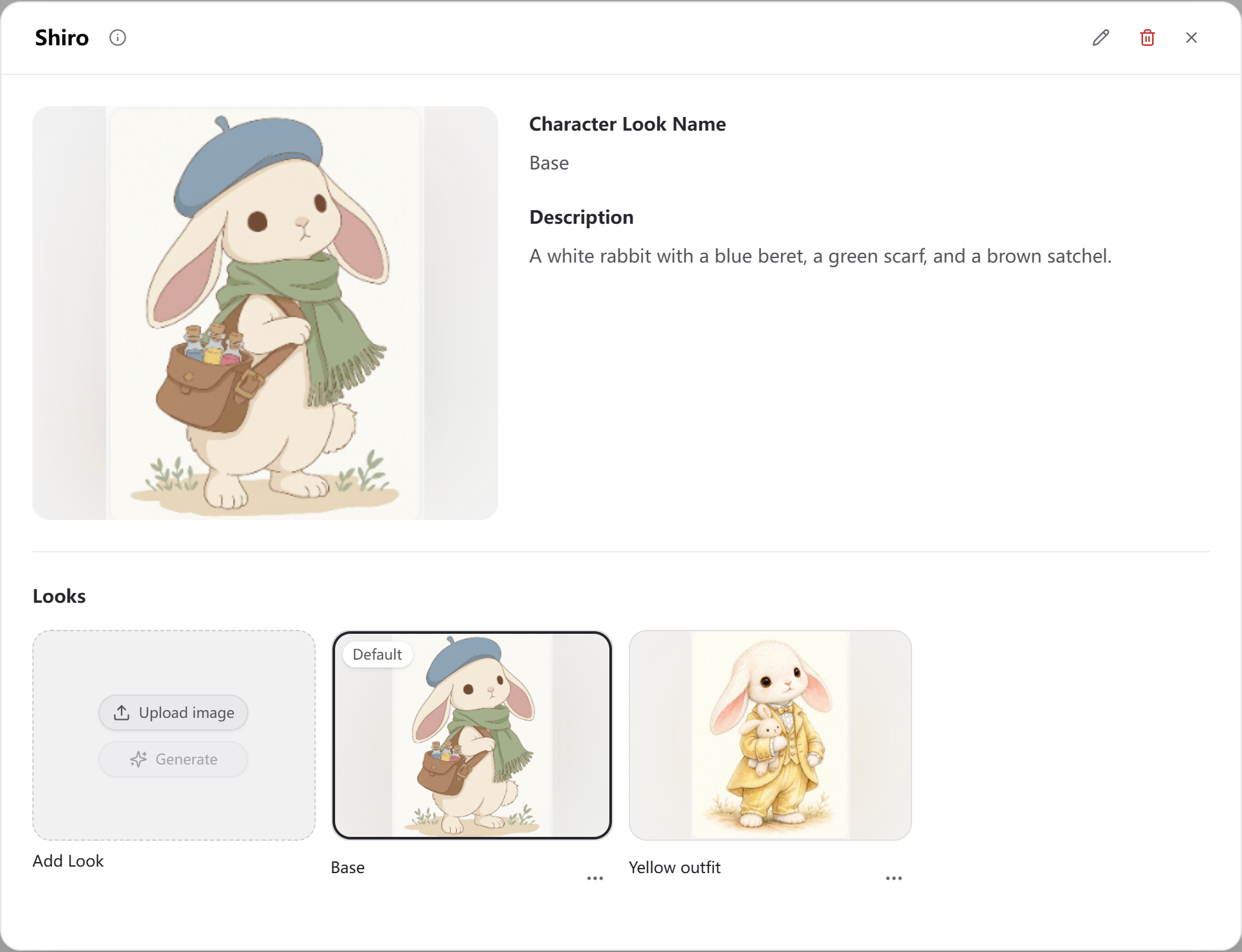
| A character who returns | Save a Character or Look, then reference it in Image. Explore the consistent character reference workflow | Identity cues, intentional changes, and unexpected additions. |
| A story with several scenes | Use the Illustration workflow to organize characters and a storyboard. Explore the AI story illustration workflow | Scene order, cast, action, and image sequence. |
| Illustrations ready to review as a book | Review images and text in Genify’s Storybook, then check the PDF print view. | Text placement, image cropping, page size, and the requirements of your intended destination. |
02. Gather the story, character cues, and visual direction.
| Prepare | Write down | Use it when |
|---|---|---|
| Story | The story excerpt or summary, plus the moments you want to illustrate. | Preparing the story and reviewing its scenes. |
| Characters | Recurring features, clothing and accessories, plus the details that may change. | Choosing references and confirming characters. |
| Visual direction | Medium, palette, mood and level of detail. | Choosing a style and reviewing the results. |
| Source rights | Where your text and reference images came from, and whether you can use them for the project. | Selecting materials and checking terms for your intended use. |
03. Submit a story, then review the cast and scene plan.
The existing Illustration workflow separates story preparation from image generation. Character confirmation and scene review happen before a user requests the still images.
- Enter a story or plot summaryChoose Illustration and provide the existing source text you want to work from.
- Extract and confirm charactersReview the proposed cast and use the available confirmation step before continuing.
- Generate and review the storyboardCheck scene order and the prompts prepared for those scenes.
- Request and inspect imagesCheck the current Credits estimate, choose scope, then review the output in story order.
04. Check the story moment, not just the style.
An attractive image can still show the wrong action or interrupt the narrative. Compare each result with your intended scene and check what a reader needs to understand.
- Character: compare face, markings, silhouette, and recurring accessories.
- Story beat: check the action, setting, and character placement against the intended moment.
- Order: follow the emotional and visual progression from one scene to the next.
- Text space: decide where words may sit; do not assume an image already has a clear area.
- Audience: consider expressions, detail, and subject matter for the age group you have in mind.
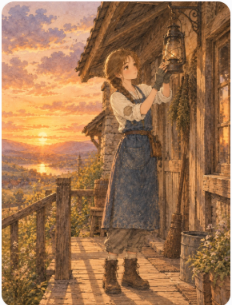
Scene 01 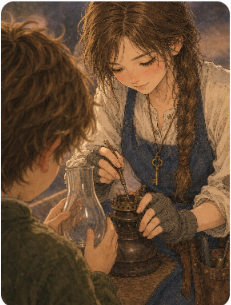
Scene 03 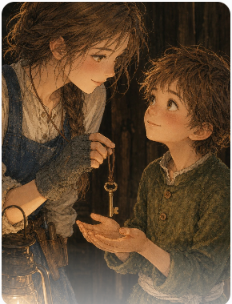
Scene 06 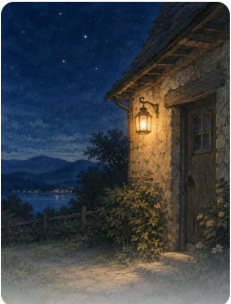
Scene 08
Scenes from one Story project, separate from the Character Library example. View the full eight-image sequence
05. Review your Storybook before sharing or printing.
Review the current Credits estimate in the composer before each chargeable action. It depends on the selected operation and model, so this guide does not quote a fixed per-image price or a retry rule.
Questions about children's book illustrations.
Can I use AI to illustrate a children's book?
Yes, AI can help create illustrations from a story and character references. You still need to check the pictures, rights, page layout and publishing requirements; the Genify illustration workflow does not produce a print-ready book.
Should I create one picture or a whole story sequence first?
Start with the smallest useful task. Use Image for one scene, a saved Character or Look when the same character must recur, and Illustration when you have story text to organize into multiple scenes.
Will a saved reference make the character identical across pages?
A reference can guide an image, but exact consistency is not guaranteed. Review each result for the features and outfit details that matter to your story.
Can I preview or export my illustrated book?
Genify includes a Storybook view and a PDF print option for reviewing images and text. Check the output for your intended use; publication still requires your own review and any destination-specific formatting.
Can I use the images commercially?
Check Genify's current terms, your rights to the input material, and the rules of your intended channel. This guide does not provide a commercial-use guarantee.
About this guide
This guide uses examples from Genify’s Image and Illustration workflows. The Character Library example and the story illustration sequence come from different projects. Review the current workspace options when preparing your own book.